在服务器上部署kvm虚拟化,虚出多台VM出来,以应对新的测试需求。
当KVM宿主机越来越多,需要对宿主机的状态进行调控,决定采用WebVirtMgr作为kvm虚拟化的web管理工具,图形化的WEB,让人能更方便的查看kvm 宿主机的情况和操作
WebVirtMgr是近两年来发展较快,比较活跃,非常清新的一个KVM管理平台,提供对宿主机和虚机的统一管理,它有别于kvm自带的图形管理工具(virtual machine manager),让kvm管理变得更为可视化,对中小型kvm应用场景带来了更多方便。
WebVirtMgr采用几乎纯Python开发,其前端是基于Python的Django,后端是基于Libvirt的Python接口,将日常kvm的管理操作变的更加的可视化。
WebVirtMgr特点
操作简单,易于使用
通过libvirt的API接口对kvm进行管理
提供对虚拟机生命周期管理
WebVirtMgr 功能
宿主机管理支持以下功能
CPU利用率
内存利用率
网络资源池管理
存储资源池管理
虚拟机镜像
虚拟机克隆
快照管理
日志管理
虚机迁移
虚拟机管理支持以下功能
CPU利用率
内存利用率
光盘管理
关/开/暂停虚拟机
安装虚拟机
VNC console连接
创建快照
部署过程
操作系统:Centos7.5
内存:4G
cpu:2H
操作环境VMware
外网ip:192.168.80.50
关闭防火墙跟selinux
[root@localhost ~]# systemctl disable firewalld
[root@localhost ~]# systemctl disable NetworkManager
#关闭SELinux
sed -i 's/SELINUX=enforcing/SELINUX=disabled/g' /etc/selinux/config
检查
setenforce 0
开启blos 开启vt,检查
1)查看是否支持虚拟机
说明1:半虚拟化是不能运行与安装KVM虚拟机的。
[root@localhost ~]# egrep '(vmx|svm)' --color=always /proc/cpuinfo

系统版本
[root@localhost ~]# cat /etc/redhat-release

安装epel源
#备份源
[root@localhost ~]# yum install wget -y
[root@localhost ~]# mv /etc/yum.repos.d/CentOS-Base.repo /etc/yum.repos.d/CentOS-Base.repo.backup
[root@localhost ~]# wget -O /etc/yum.repos.d/CentOS-Base.repo http://mirrors.aliyun.com/repo/Centos-7.repo
[root@localhost ~]# yum -y install epel-release
[root@localhost ~]# yum clean all
[root@localhost ~]# yum makecache
#install software
[root@localhost ~]# yum install net-tools vim lrzsz -y
安装kvm软件
# yum install qemu-kvm libvirt libvirt-python libguestfs-tools virt-install virt-manager python-virtinst libvirt-client virt-viewer -y
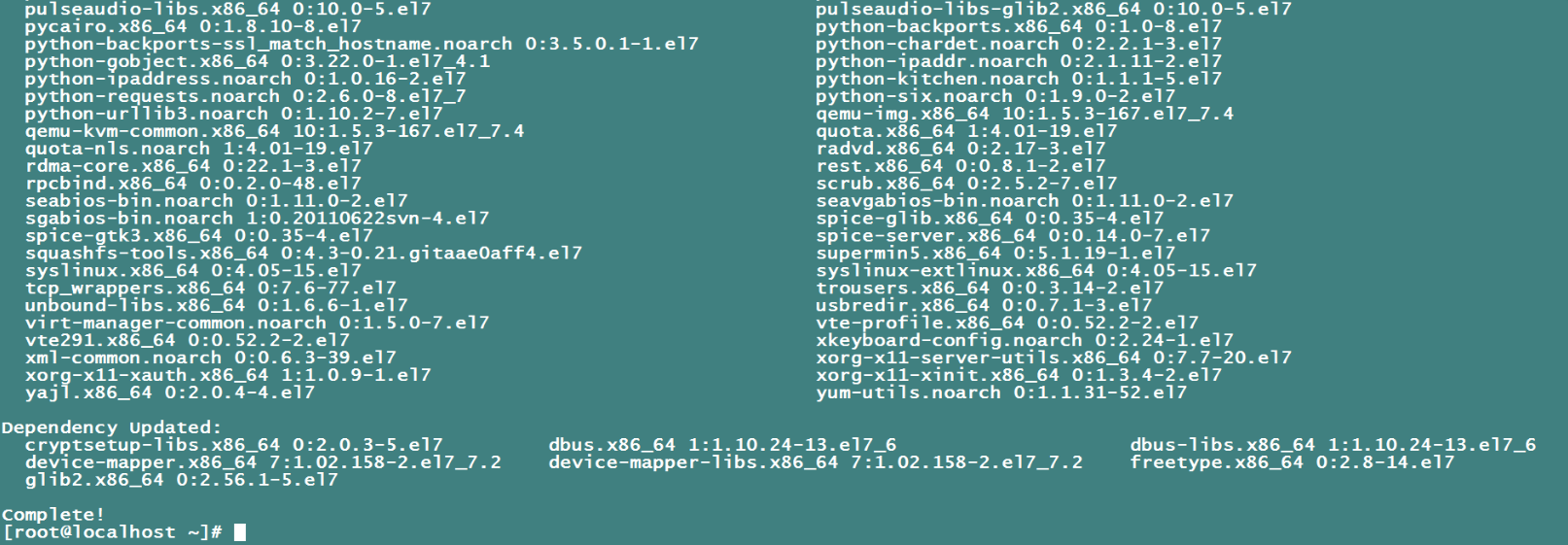
本机网络
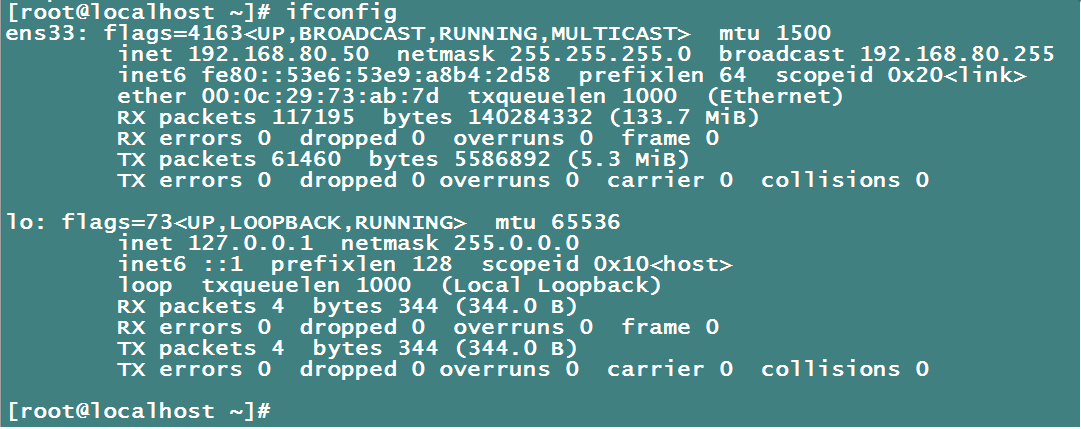
配置桥接网络,(备注:br0绑定ens33)
[root@localhost ~]# cd /etc/sysconfig/network-scripts/
进入到网卡配置目录
ifcfg-ens33以实际为准,本系统安装完后的外网网卡名称是ens33
# cp ifcfg-ens33 ifcfg-br0
# vi ifcfg-br0
修改下br0配置文件吧里面刚刚复制的网卡名称修改成br0
TYPE="Bridge"
PROXY_METHOD="none"
BROWSER_ONLY="no"
BOOTPROTO="none"
DEFROUTE="yes"
NAME="br0"
DEVICE="br0"
ONBOOT="yes"
IPADDR="192.168.80.50"
PREFIX="24"
GATEWAY="192.168.1.4"
DNS1="223.5.5.5"
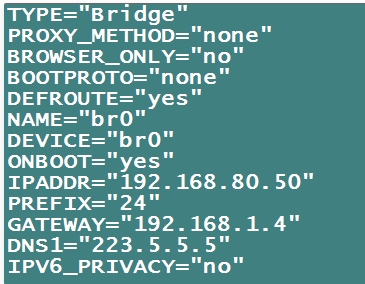
原来的ifcfg-ens33修改成如下
# vi ifcfg-ens33
TYPE=Ethernet
NAME=ens33
DEVICE=ens33
ONBOOT=yes
BRIDGE=br0
桥接到br0
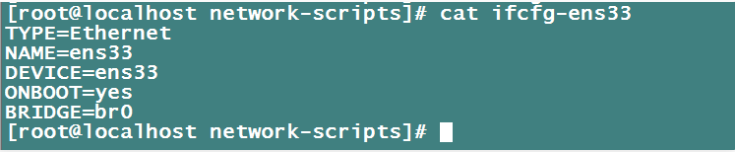
# systemctl restart network //重启下网卡
查看网桥
[root@localhost ~]# brctl show

启动libvirt
[root@localhost ~]# systemctl restart libvirtd
[root@localhost ~]# systemctl status libvirtd
测试
[root@localhost ~]# virsh -c qemu:///system list
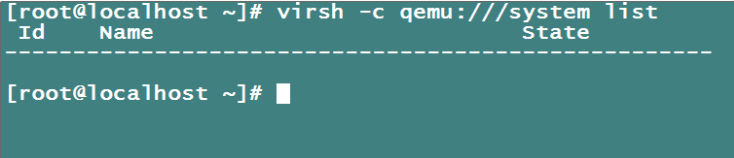
[root@localhost ~]# virsh --version

[root@localhost ~]# virt-install --version

[root@localhost ~]# lsmod |grep kvm

二、部署webvirtmgr
参考官网:https://github.com/retspen/webvirtmgr/wiki/Install-WebVirtMgr
安装依赖包
# yum install git python-pip libvirt-python libxml2-python python-websockify supervisor nginx -y
从git-hub中下载相关的webvirtmgr代码
[root@localhost ~]# cd /usr/local/src/
[root@localhost src]# git clone git://github.com/retspen/webvirtmgr.git
1.3 安装webvirtmgr
[root@localhost src]# cd webvirtmgr/
[root@localhost webvirtmgr]# pip install -r requirements.txt
1.4、初始化账号
[root@localhost webvirtmgr]#  ./manage.py syncdb
WARNING:root:No local_settings file found.
Creating tables ...
Creating table auth_permission
Creating table auth_group_permissions
Creating table auth_group
Creating table auth_user_groups
Creating table auth_user_user_permissions
Creating table auth_user
Creating table django_content_type
Creating table django_session
Creating table django_site
Creating table servers_compute
Creating table instance_instance
Creating table create_flavor

You just installed Django's auth system, which means you don't have any superusers defined.
Would you like to create one now? (yes/no): yes
Username (leave blank to use 'root'): admin
Email address: demo@ahaoyw.com
Password:
Password (again):
Superuser created successfully.
Installing custom SQL ...
Installing indexes ...
Installed 6 object(s) from 1 fixture(s)
1.6 拷贝web到 相关目录
[root@localhost webvirtmgr]# mkdir -pv /var/www
[root@localhost webvirtmgr]# cp -Rv /root/webvirtmgr /var/www/webvirtmgr
1.7 设置ssh
[root@localhost webvirtmgr]# ssh-keygen -t rsa //产生公私钥
[root@localhost webvirtmgr]# ssh-copy-id 192.168.80.50 //由于这里webvirtmgr和kvm服务部署在同一台机器,所以这里本地信任。如果kvm部署在其他机器,那么这个是它的ip
编辑nginx配置文件
#添加这行代码: include /etc/nginx/conf.d/*.conf;
[root@localhost ~]# cd /etc/nginx/
[root@localhost nginx]# rm -rf nginx.conf
[root@localhost nginx]# cp nginx.conf.default nginx.conf
#编辑配置文件
[root@localhost nginx]#vi nginx.conf
在模块http中添加一行如图
include /etc/nginx/conf.d/*.conf;
可以在倒数第二行添加
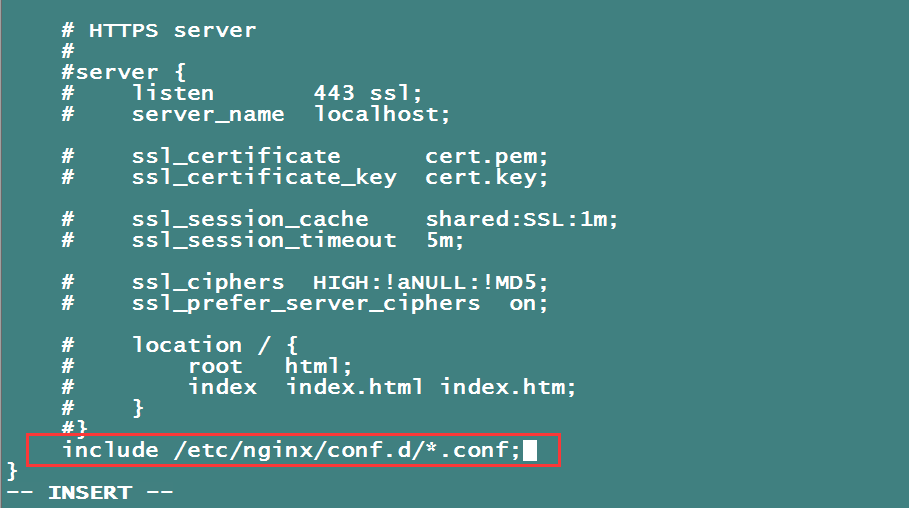
#添加 /etc/nginx/conf.d/webvirtmgr.conf 配置文件
[root@localhost nginx]# vi /etc/nginx/conf.d/webvirtmgr.conf
server {
listen 80 default_server;

server_name $hostname;
#access_log /var/log/nginx/webvirtmgr_access_log;

location /static/ {
root /var/www/webvirtmgr/webvirtmgr; # or /srv instead of /var
expires max;
}

location / {
proxy_pass http://127.0.0.1:8000;
proxy_set_header X-Real-IP $remote_addr;
proxy_set_header X-Forwarded-for $proxy_add_x_forwarded_for;
proxy_set_header Host $host:$server_port;
proxy_set_header X-Forwarded-Proto $remote_addr;
proxy_connect_timeout 600;
proxy_read_timeout 600;
proxy_send_timeout 600;
client_max_body_size 1024M; # Set higher depending on your needs
}
}
#重启nginx服务
# systemctl restart nginx
1.9 修改防火墙规则
#修改防火墙规则
[root@ops ~]# vim /etc/sysconfig/selinux
修改成
SELINUX=disabled
#临时生效
[root@ops ~]# setenforce 0
setenforce: SELinux is disabled
#查看状态
[root@ops ~]# getenforce
Disabled
2.0 给webvirtmgr目录web服务权限
# chown -R nginx:nginx /var/www/webvirtmgr
2.1 设置 supervisor (如果iptables防火墙开启的话,就必须要开通80、8000、6080端口访问)
[root@localhost nginx]# vi /etc/supervisord.conf //在文件末尾添加,注意将默认的python改为python2,因为上面只有用这个版本执行才不报错!
[program:webvirtmgr]
 #//启动8000端口
command=/usr/bin/python2 /var/www/webvirtmgr/manage.py run_gunicorn -c /var/www/webvirtmgr/conf/gunicorn.conf.py
directory=/var/www/webvirtmgr
autostart=true
autorestart=true
logfile=/var/log/supervisor/webvirtmgr.log
log_stderr=true
user=nginx

[program:webvirtmgr-console]
#  //启动6080端口(这是控制台vnc端口)
command=/usr/bin/python2 /var/www/webvirtmgr/console/webvirtmgr-console
directory=/var/www/webvirtmgr
autostart=true
autorestart=true
stdout_logfile=/var/log/supervisor/webvirtmgr-console.log
redirect_stderr=true
user=nginx
#检查
确保下面bind绑定的是本机的8000端口,这个在nginx配置中定义了,被代理的端口,如果不是的话要改成8000
# cat /var/www/webvirtmgr/conf/gunicorn.conf.py |grep "bind"

#设置开机启动
[root@localhost nginx]# systemctl enable supervisord.service
重启服务
[root@localhost nginx]# systemctl restart supervisord
[root@localhost nginx]# systemctl status supervisord

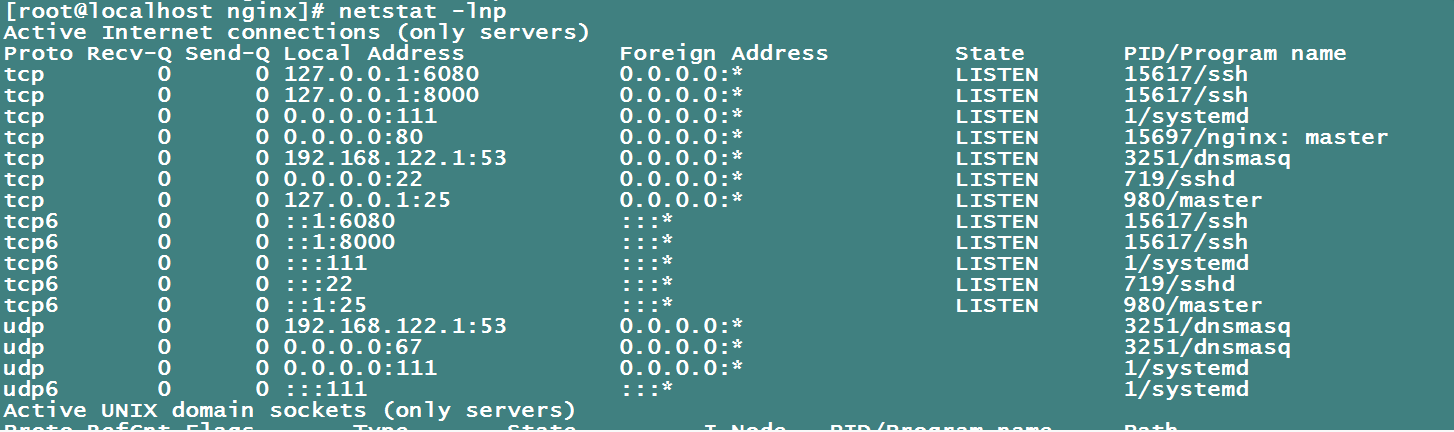
#查看端口:6080和8000是否已经启动
[root@localhost nginx]# netstat -lnp
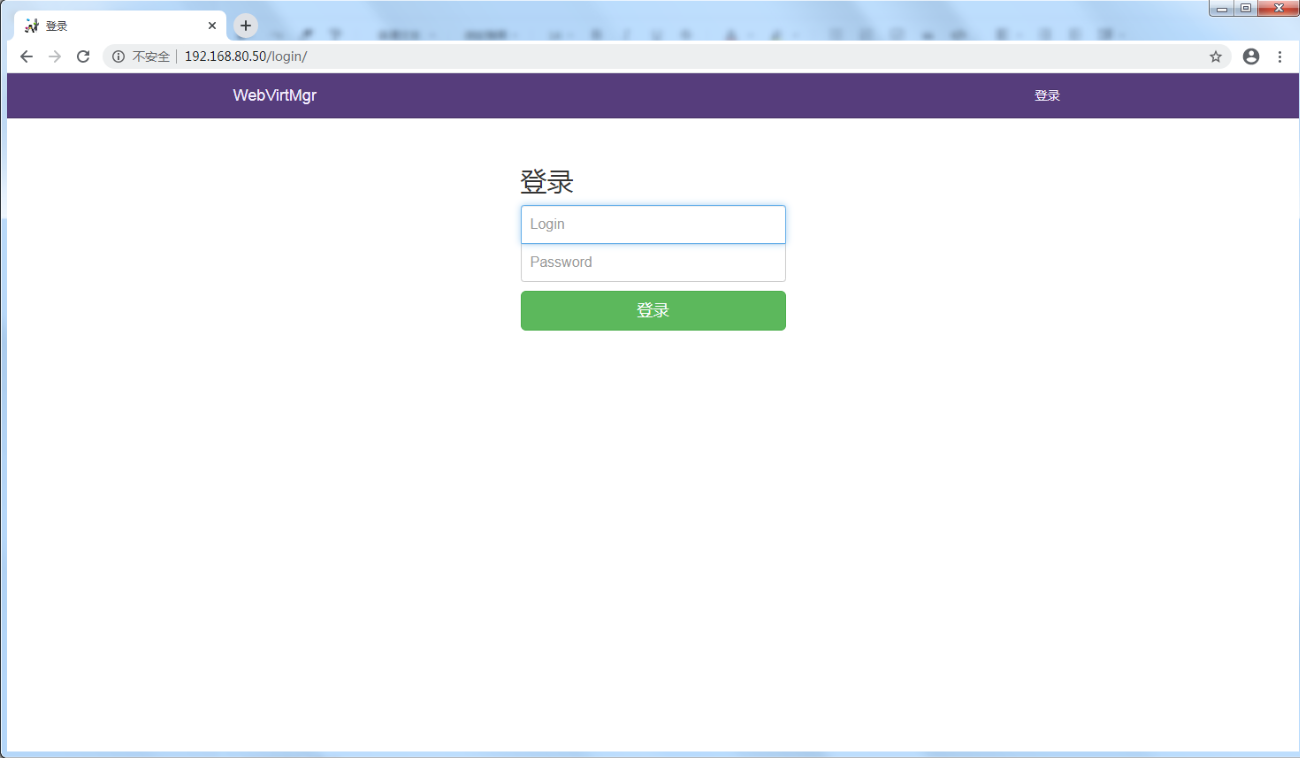
2.3 访问地址:http://192.168.80.50/login/
账号信息:
username: admin
passwd:你设置的密码
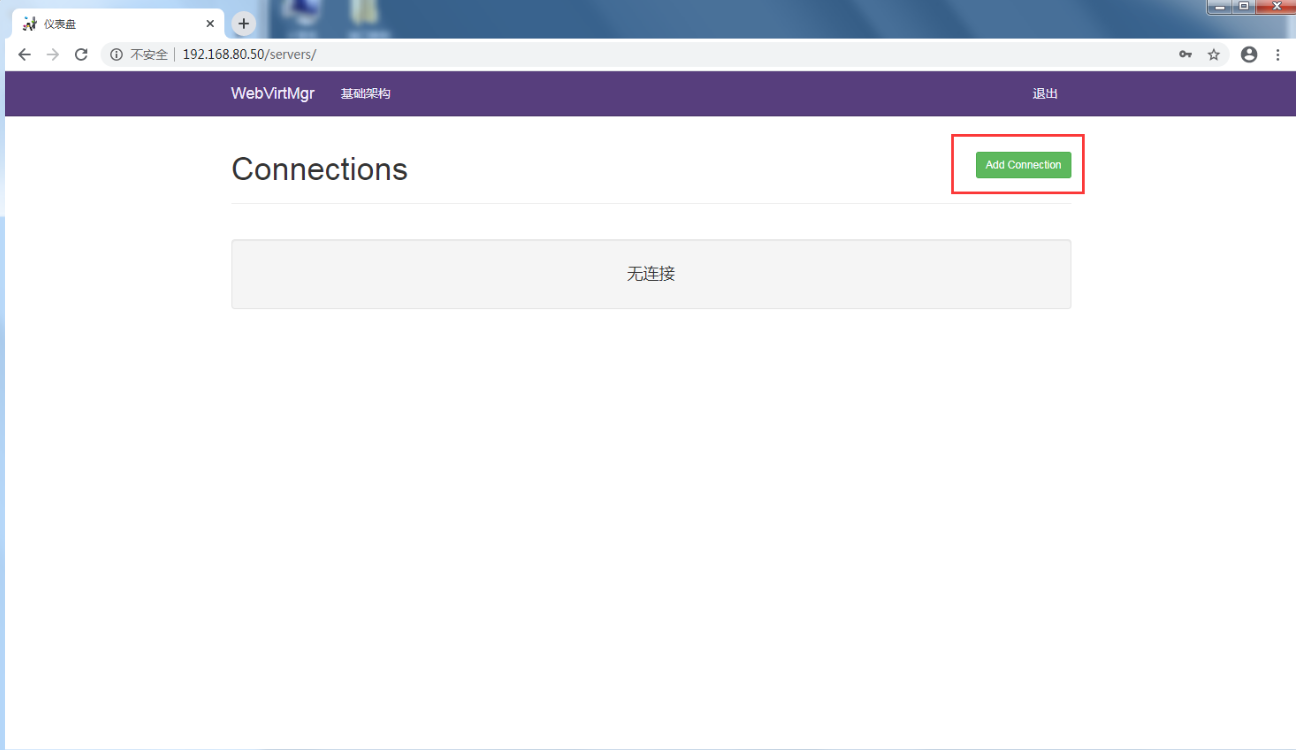
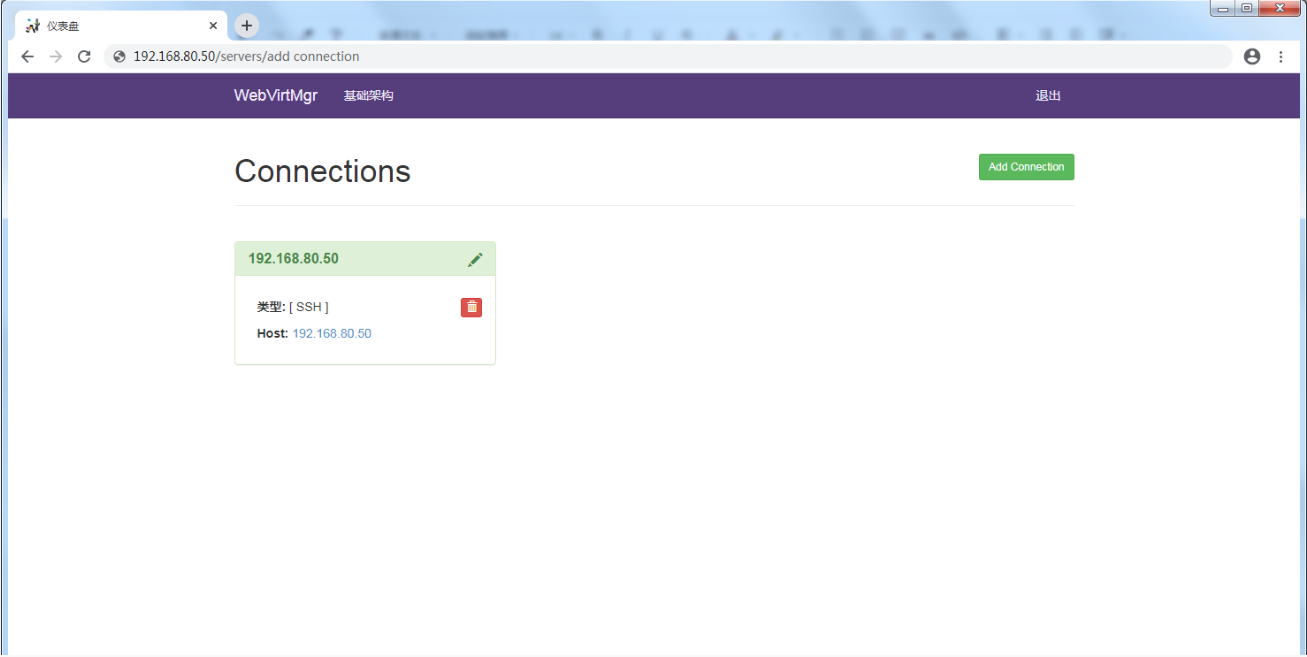
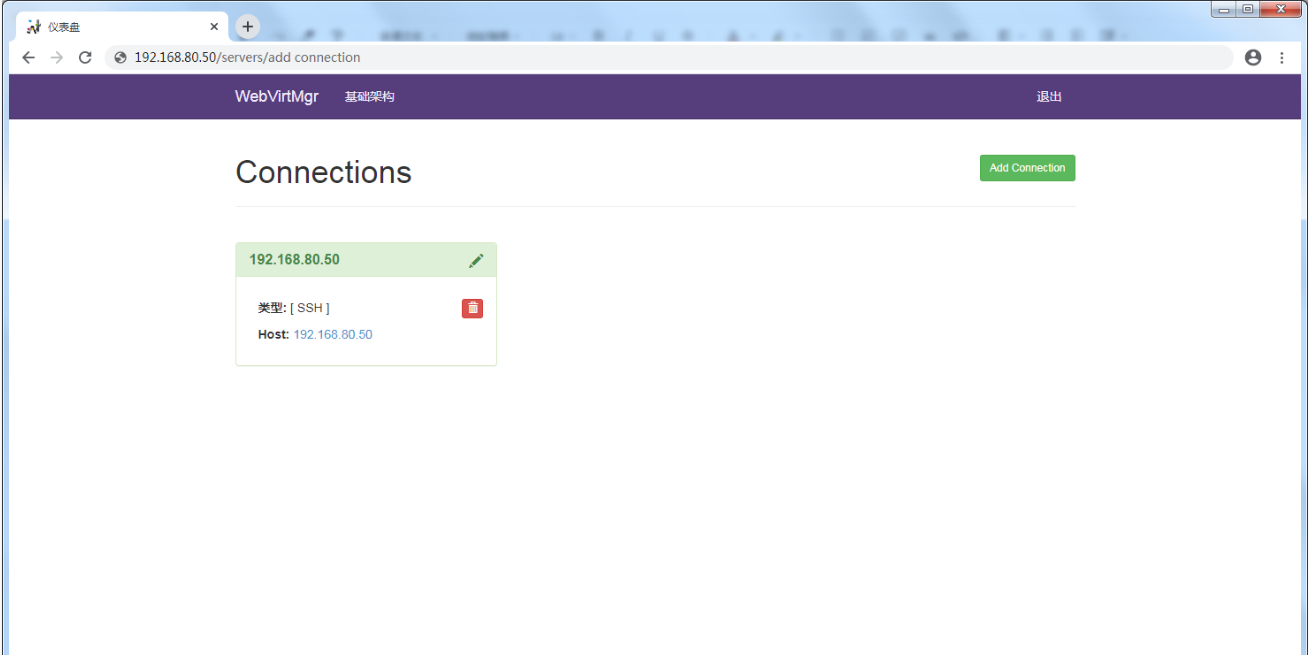
点击add connection添加链接
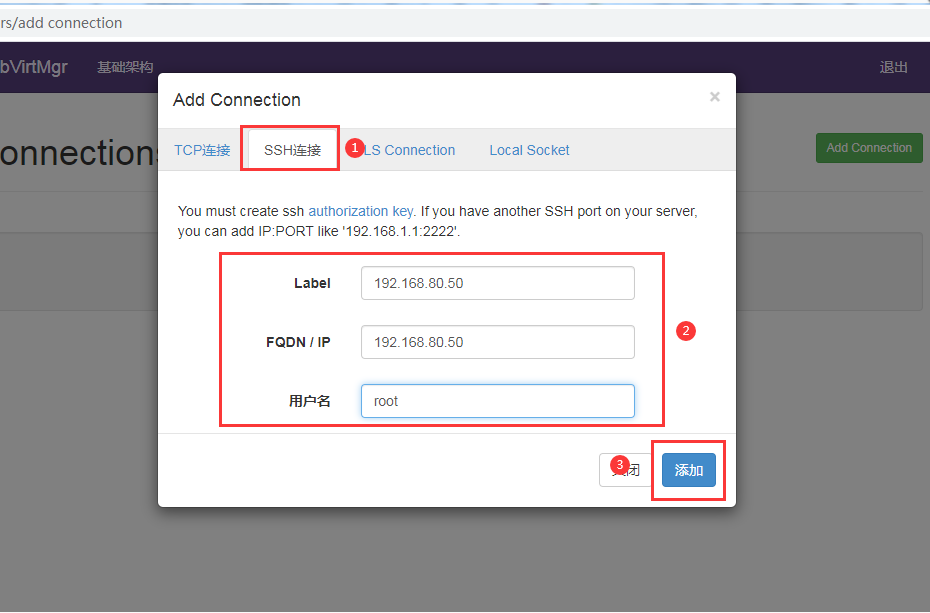
选择ssh连接,设置label,ip,用户
注:label与ip要相同
2.4 登录后会报错
Cannot recv data: Host key verification failed.: Connection reset by peer
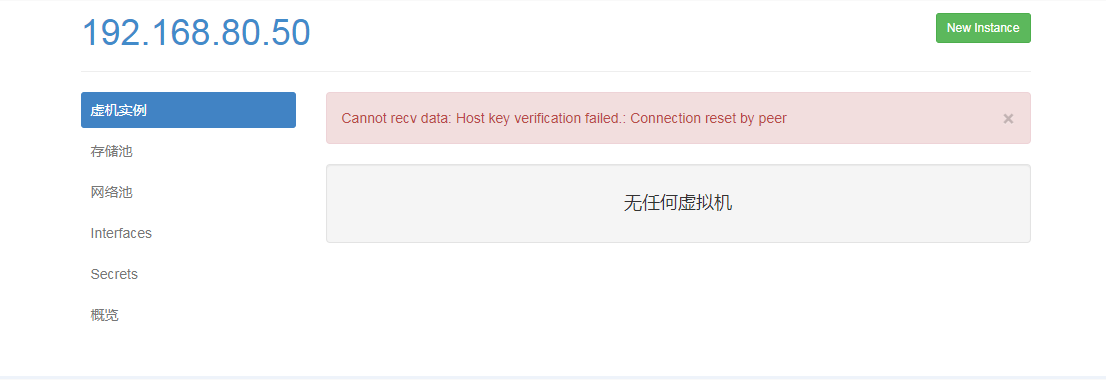
解决措施:
1)在webvirtmgr服务器(服务端)上(这里kvm和WebVirtMgr部署在同一台机器上)创建nginx用户家目录(默认nginx服务安装时是没有nginx家目录的),生成nginx的公私钥
[root@localhost ~]# cd /home/
[root@localhost home]# mkdir nginx
[root@localhost home]# chown nginx.nginx nginx/
[root@localhost home]# chmod 700 nginx/ -R
[root@localhost home]# su - nginx -s /bin/bash
-bash-4.1$ ssh-keygen #期间输入yes后直接回车,回车
-bash-4.1$ touch ~/.ssh/config && echo -e "StrictHostKeyChecking=no\nUserKnownHostsFile=/dev/null" >> ~/.ssh/config
-bash-4.1$ chmod 0600 ~/.ssh/config
#在webvirtmgr服务器(服务端)上(这里kvm和WebVirtMgr部署在同一台机器上),将nginx用户的ssh-key上传到kvm服务器上(这里kvm和WebVirtMgr部署在同一台机器上)
[root@localhost home]# su - nginx -s /bin/bash
-bash-4.2$ ssh-copy-id root@192.168.80.50
/bin/ssh-copy-id: INFO: Source of key(s) to be installed: "/var/lib/nginx/.ssh/id_rsa.pub"
/bin/ssh-copy-id: INFO: attempting to log in with the new key(s), to filter out any that are already installed
/bin/ssh-copy-id: INFO: 1 key(s) remain to be installed -- if you are prompted now it is to install the new keys
Warning: Permanently added '192.168.80.50' (ECDSA) to the list of known hosts.
root@192.168.80.50's password: #输入192.168.0.50即本机的root账号
Number of key(s) added: 1
Now try logging into the machine, with: "ssh 'root@192.168.80.50'"
and check to make sure that only the key(s) you wanted were added.
#在kvm(客服端)服务器上(这里kvm和WebVirtMgr部署在同一台机器上)配置 libvirt ssh授权
[root@localhost home]# vi /etc/polkit-1/localauthority/50-local.d/50-libvirt-remote-access.pkla
[Remote libvirt SSH access]
Identity=unix-user:root #注意这里采用的是root用户
Action=org.libvirt.unix.manage
ResultAny=yes
ResultInactive=yes
ResultActive=yes
[root@localhost home]# chown -R root.root /etc/polkit-1/localauthority/50-local.d/50-libvirt-remote-access.pkla
#重启服务
# systemctl restart nginx
# systemctl restart libvirtd